Workspace · Organizations

Organizations & workspaces

A workspace (organization) owns your projects, engagements, scans, findings, members and subscription — everything you do in CodesGuard happens inside one. This page explains what a workspace contains, how to manage its members, and how to switch between the workspaces you belong to.
app.codesguard.io/dashboard/organization
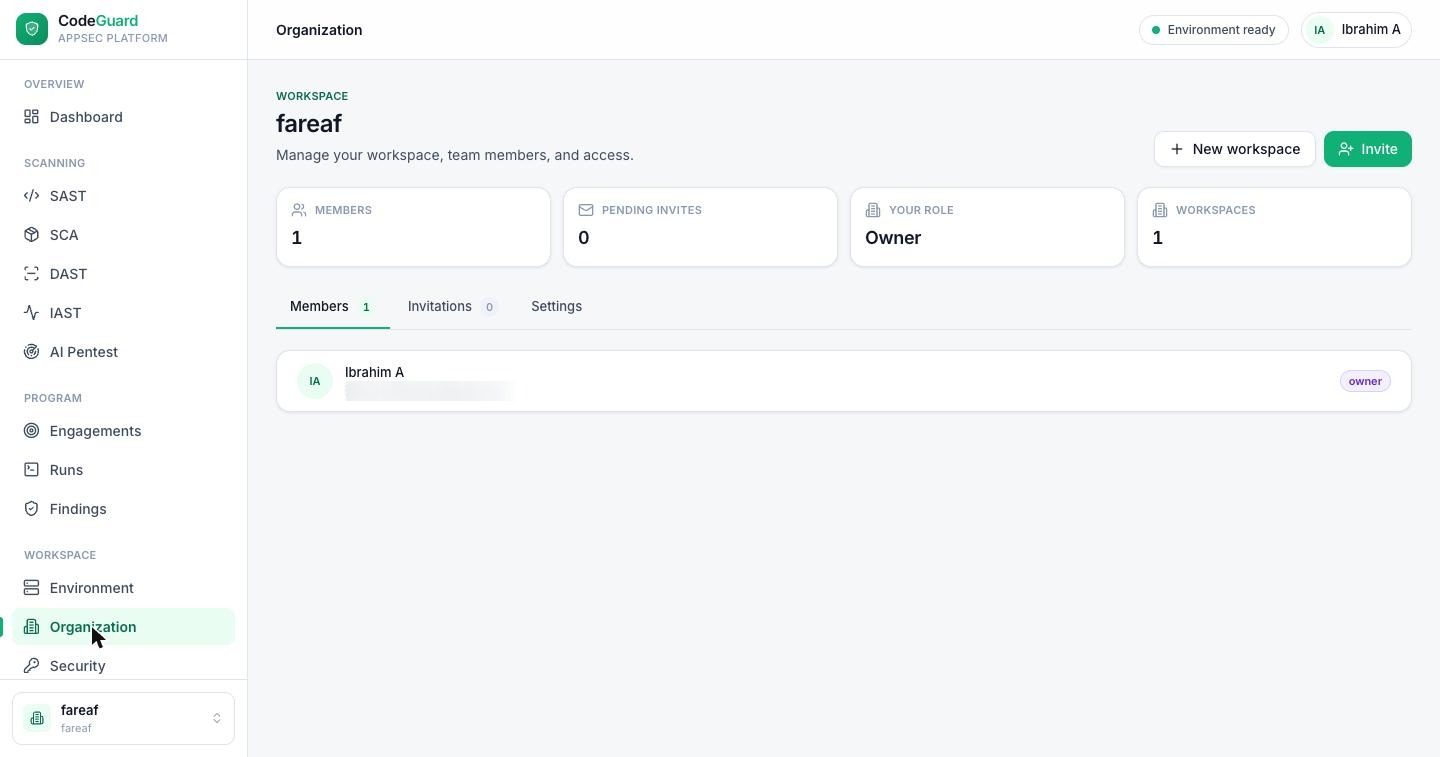
Organization page with summary tiles for members, pending invites, your role and workspaces count, plus member and invitation tabs
The Organization page: summary tiles, and tabs for Members, Invitations and Settings.

What a workspace contains

A workspace is the boundary around everything you do in CodesGuard. It owns your:

  • Projects — your SAST codebases and their scan history.
  • Engagements — the targets behind DAST and AI Pentest, and the IAST projects your runtime agents report into.
  • Scans and findings — every run and every result they produce.
  • Members and roles — the people who have access and what they can do.
  • Billing subscription — the plan that governs your limits and which modules are unlocked.

Your active workspace is shown at the bottom-left of the sidebar. Click it to switch between workspaces you belong to, or choose New workspace to create another.

Limits depend on your plan How many members and workspaces you can have depends on your subscription. See Billing & plans for the seat and workspace limits on each tier.

The Organization page

Open Organization to manage the current workspace. The top of the page shows summary tiles:

Members
How many people belong to this workspace.
Pending invites
Invitations that have been sent but not yet accepted.
Your role
Your role in this workspace (for example owner).
Workspaces
How many workspaces you belong to in total.

Below the tiles, three tabs organize the rest of the page:

Members Invitations Settings

Members & roles

The Members tab lists everyone in the workspace. Each member row shows their name and a role badge — for example owner. The owner has full control of the workspace, including its members, settings and subscription.

Every role can read the workspace's scans, findings and the decisions made on them. What a role can change:

Owner, admin
The workspace's settings, its scan and license policies, and its CI tokens.
Owner, admin, pentester
Decisions on findings: marking a finding remediated or not processed, deciding on a dependency, and stating an advisory's impact. Each of these can turn a failing scan into a passing one, so they are kept to these roles.
Viewer
Reads every finding and decision, and can make none.

Inviting teammates

CodesGuard onboarding is invitation-based — there's no open public sign-up. Use Invite to send an invitation by email. The invitee receives an invitation link; when they accept it and register with the invited address, they join this workspace. Pending invitations appear under the Invitations tab until they're accepted, and you can revoke one that's still pending.

Register with the invited email If the invitee doesn't have an account yet, they should register using the same email the invitation was sent to — see the note on the Getting started page — so the invitation matches their new account.

Scan policy and License policy

Two cards on the Organization page decide what fails a scan in this workspace. Owners and admins change them; everyone else sees them.

Scan policy
What fails a scan — shown on every scan, the project list and the report, and as the exit status of a CI job. Until you change it, a scan fails on any open critical or high finding, a malicious package, or a package whose license your license policy denies. You can set the severity threshold (code, dependencies or both), count dependency findings only when a fix exists, fail on known-exploited vulnerabilities, on an exploit likelihood or on advisories older than a number of days, and judge pull requests only on what they introduce. A project can have its own policy: its Settings tab → Scan policy → Customize.
License policy
Allow, review and deny lists of SPDX licenses, a rule for licenses on no list and one for unknown licenses, and whether packages used only to build or test are judged. A package whose license is denied or marked for review becomes a license finding. Part of the Enterprise plan; on other plans the saved lists are kept and not applied.

Each save is versioned, and every scan is judged again at once — no rescan.

Audit log & single sign-on

For teams that need to account for who did what, and to manage access centrally, the workspace adds two enterprise controls:

Audit log
An exportable record of workspace activity — sign-ins, invitations and role changes, scans and runs launched, and decisions made on findings. How long entries are retained scales with your plan; see Billing & plans.
Single sign-on (SSO)
Connect your identity provider over SAML or OIDC so members sign in with your organization's existing accounts and 2FA policy. SSO is part of the Enterprise plan.

Switching & multiple workspaces

You can belong to several workspaces at once and switch between them from the workspace switcher at the bottom-left of the sidebar. Each workspace is fully isolated: it has its own projects, engagements, scans, findings, members and plan, and nothing crosses between them. That makes workspaces a natural boundary for separating teams, clients, or environments.