SCA — Software composition analysis
Modern apps are mostly code you didn't write. SCA finds the known vulnerabilities hiding in your third-party dependencies — matched against public security advisories — so a flaw in a package you imported doesn't become a flaw in your product.
What SCA is
Software Composition Analysis inventories the open-source libraries your project depends on and checks each one against databases of known vulnerabilities (CVEs and GitHub advisories). Where SAST asks “is there a bug in the code we wrote?”, SCA asks “is there a known vulnerability in a package we imported?” Both matter — a huge share of real-world breaches trace back to an unpatched dependency.
How SCA works in CodesGuard
You don't run a separate SCA scan. In CodesGuard, SCA is derived from your SAST
scans. When the SAST engine analyses your source, it also reads your dependency
manifests and lockfiles (like composer.json, package.json and their
lockfiles) and records every package your project depends on. The SCA module reads those results from each project's latest completed
SAST scan and matches them against known advisories.
The dependency results arrive first: a project's dependency findings appear on the SCA page while its code analysis is still running, with a line saying so, and the scan's final results replace them when it ends. A scan whose code analysis stops (cancelled, or at a limit) keeps its complete dependency results.
The SCA overview
Open SCA from the sidebar. The top of the page summarizes your dependency risk across every project, and you can scope it to a single project or search by package, CVE or manifest.
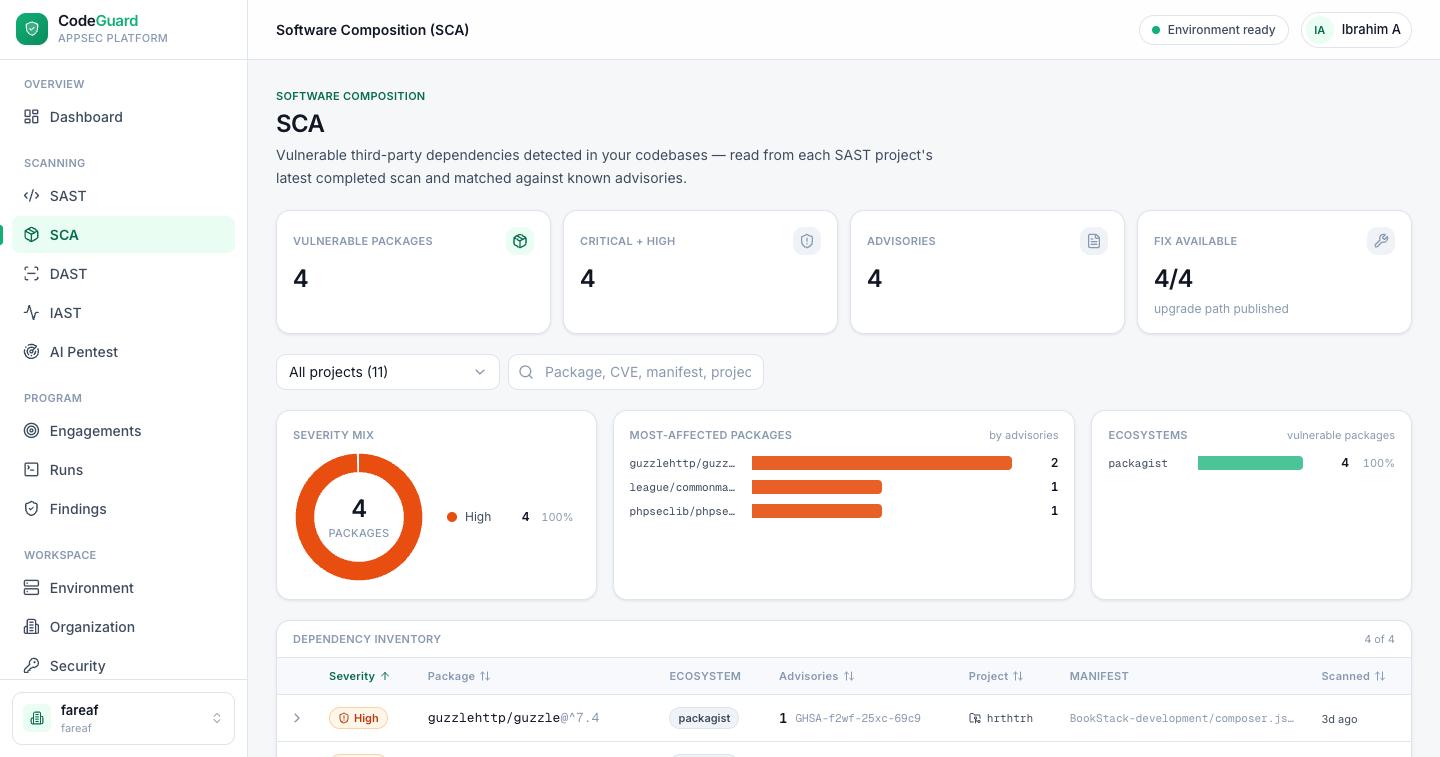
The metric tiles give you the headline numbers:
n/m: how many vulnerable packages have a single
upgrade that clears every advisory. The version named is the smallest one above
what you use that no advisory for that package covers. A package is not counted when no
such version exists yet: its advisories say “No fix published”, or each names a fix
that leaves another of its advisories open.Three charts break the same data down — Severity mix, Top packages by advisories, and By ecosystem (npm, Composer, Maven, Gradle, Python…). Clicking a segment filters the inventory table below it.
How sure each match is
Every finding says which version was checked and where that version came from, because that decides how much to trust it:
^7.4) and no lockfile the scan read pins it, so the installed version is
unknown. The finding is marked for review and says, in the scan's own words, what would
settle it: a lockfile when there is none, a refreshed lockfile when the one there does
not list the package, or — when your lockfile is one the scan cannot read yet — that it
is present but not read yet. Commit or upload the lockfile and rescan to turn the match
into a confirmed one or make it disappear.Packages your lockfile pulls in indirectly (a dependency of a dependency) are marked transitive; the finding points at the lockfile line, since there is no manifest line to edit.
The dependency inventory
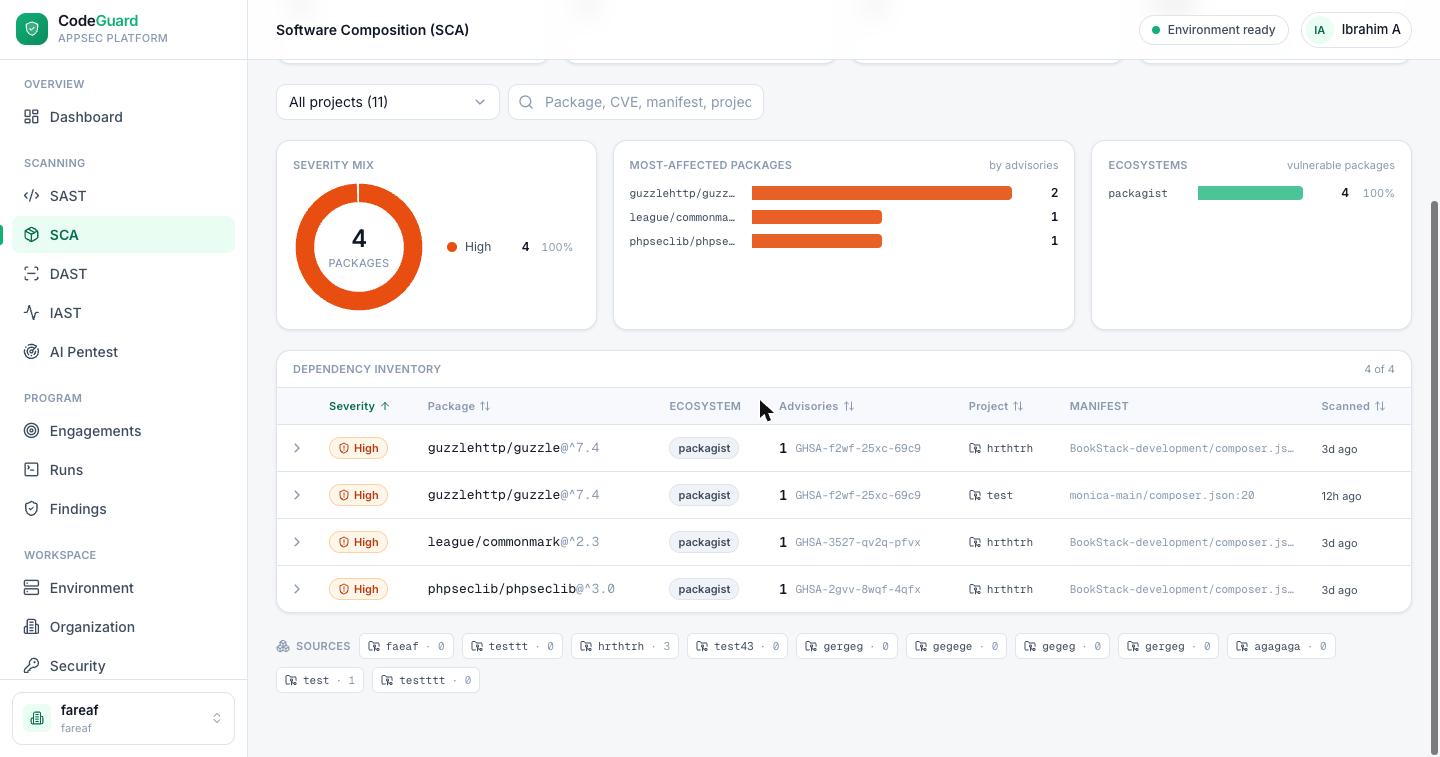
Below the charts, every vulnerable dependency is listed in a sortable table. Each row shows the package with its ecosystem and the manifest file and line it is declared in, the installed version and how it was known, its first advisory ID (and how many more), the project it came from, and the upgrade that clears it. On a phone the rows stack and show the manifest's full path, so the same package in two manifests reads differently.
Advisory detail
Expand any row to see the advisory in full. Each advisory ID opens the advisory's own public page:
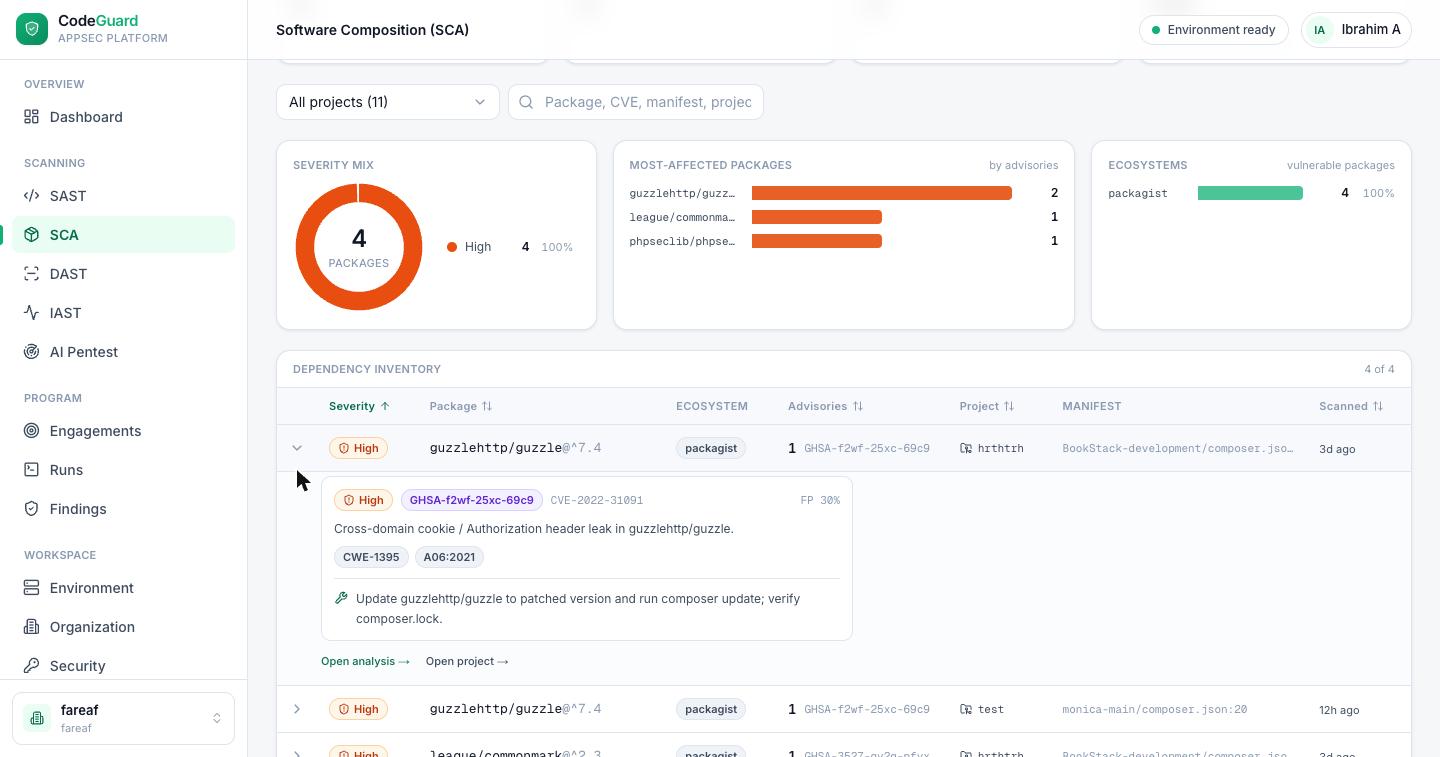
- Advisory identifiers — the GHSA ID and any aliases such as the CVE (e.g.
GHSA-f2wf-25xc-69c9/CVE-2022-31091). The ID links to the advisory's own reference page. A package that is itself malicious (not merely vulnerable) carries a Malicious package badge and is always rated critical — whatever score the advisory itself gives, because a compromised release is not a bug to upgrade past later. The advisory's own score is still shown beside it. An advisory whose ID has no public page of its own is shown as plain text, without a link. - Your own package — a package your upload defines itself (a workspace member, a module of the same build) or whose name is under your private registry scope is never checked against public advisories. When a package of the same name is published on the public registry, it is listed with a Your own package badge: the advisory shown is the public namesake's, and it means an install that resolves the name from the public registry instead of from yours would install someone else's code. The fix is to serve it only from your own registry. If another project in your upload installs the public package of that name from the registry, that copy is not yours: it is checked like any public package, and the bill of materials lists both — yours marked as your own.
- Unmaintained package — a package its advisory source marks as no longer maintained carries an Unmaintained package badge. It is not a known flaw: nothing found in it will be fixed any more, so the fix is to replace it rather than upgrade it.
- Versions — the version that was checked, how it was found (locked, pinned or declared), the versions the advisory says are fixed, and the single upgrade that clears every advisory on the package when one exists. When the manifest line does not write the version itself, the detail says where it is set — another line of your build files, or a parent or bill of materials — and for a transitive package, which packages pulled it in.
- Summary — a plain description of the vulnerability.
- CVSS — the advisory's score and its full CVSS vector as text, for CVSS version 3 and version 4, so the scoring can be checked rather than trusted.
- Classification — CWE and OWASP tags.
- Exploit data — how likely the advisory is to be exploited and whether it is known to be exploited (see Exploit data), and whether your code imports and calls the package. A dependency finding is a published advisory matched on a version, so it carries no false-positive score: it is not sent for AI review.
- Affected functions — where the advisory's fix names the functions it changed, those functions, and the first place your code calls one of them through the package (for example
src/render.js:3 · _.template). When no such call is found the advisory says so and stays listed: calls the package makes inside itself are not followed, so “no direct call” never clears a finding. - Remediation — the upgrade that clears every advisory on the package when one exists (“Upgrade to 7.4.5”), else each advisory's fixed versions, or “No fix published”.
- Links — jump to the underlying SAST analysis or the project.
Supply-chain signals
Beyond published advisories, each package is checked for signs that matter before a flaw is ever published. They are listed with the dependency findings, under their own family:
expres beside
express). Your scan policy fails on it by default; check it is the package you
meant.Container images
Upload a container image (a docker save archive, .tar) with your
code and its root filesystem is read: the operating-system packages from its package
database, matched against the distribution's own advisories for its release, and the
language packages installed in it — Java archives, Python packages, Node packages, Go
programs. At the fetched tier, a Dockerfile's runtime base image is pulled from
its registry and read the same way.
Alerts and trends
Every hour, each project's stored dependencies are checked again against the newest
advisory data — no upload. When that finds new vulnerable packages, the people and webhook
you set under Organization → Dependency alerts are told: an e-mail summary,
and a JSON delivery signed with your secret (X-CodesGuard-Signature). Choose the
lowest severity that alerts, and whether a newly known-exploited advisory alerts whatever its
severity. The Vulnerable packages tile shows the trend over the last weeks,
and the Fix available tile how long fixes have taken.
Exploit data
Severity says how bad a vulnerability would be; exploit data says how likely it is to be used against you. Each advisory whose CVE is known to the two public sources below shows:
Sort the list by Priority to see known-exploited advisories first, then the most likely to be exploited, then the most severe. The Exploit filter shows only known-exploited advisories, or those at or above a likelihood (10, 50 or 90 %), and the Advisories tile counts how many are known exploited. Your scan policy can fail scans on either fact. The exploit data is refreshed with the advisory data, and stored results are checked against it again without a new upload.
Licenses
Every package shows its license as the file that pins it declares it — “License: MIT” — written as an SPDX expression, or “License: unknown” with the reason: the file records no licenses (most manifests and some lockfiles), the lockfile entry declares none, or the declared text is not an SPDX license. A license is never guessed. npm and Composer lockfiles record licenses; for other ecosystems the license is shown as unknown with that reason.
With a license policy (Organization → License policy; part of the Enterprise plan), a package whose license you deny, or mark for review, becomes a license finding — “License denied by policy: <package>” — listed with your other findings. The policy has allow, review and deny lists of SPDX licenses, a rule for licenses on no list and one for unknown licenses, and whether packages used only to build or test are judged. Saving it judges your scans again at once. See Scan policy and License policy.
Stating impact (VEX)
Not every advisory on a package affects your product: the vulnerable function may never be called. State impact on an advisory records what it means for you, in the standard VEX vocabulary:
A statement can expire (in 30, 90 or 180 days, or never). It is kept across scans until it expires — or until the advisory's fixed versions change, when the advisory comes back so you can look again. Withdraw it at any time. Owners, admins and pentesters can state impact; viewers see the statements but cannot make them. Download every statement in force as OpenVEX from the Export menu.
Exports
Export on the SCA page downloads, for the project and filters you have chosen:
A single scan's report, results file and bill of materials are also on the scan page — see SAST → Downloads.
What the scan did not check
A clean page is only worth something if you know what was looked at. So the SCA page never says “Supply chain clear” unless every project is current and at least one package was actually checked against the advisory data — and when it does say it, it also says what that rests on: how many manifests and lockfiles were read, how many packages were checked, which ecosystems were read, and which ecosystems are present in your code but not read (for example a SUSE image's package database, which is listed as seen but not read). Below the inventory, a coverage block says, per ecosystem, how many packages were found in your dependency files, how many were checked, and — for every package that was not checked — why:
- Version managed outside this file — a Maven or Gradle version that comes from a parent or a bill of materials the upload does not contain.
- Version comes from a variable this scan could not resolve — a build file variable that no file in the upload assigns.
- Version could not be read — a spec no version grammar can read, such as a git address, a local path or a development branch. The spec is shown as written.
- No advisory data loaded for this ecosystem — the page also prints “<ecosystem>: 0 advisories loaded”, so an empty result for that ecosystem is never mistaken for a clean one.
- Dependency file not read yet / a lockfile exists but is not
read yet — a file we recognise but do not read (for example a Bun binary
lockfile
bun.lockbwritten by a Bun version whose layout is not read — those of Bun 1.0 and 1.1 are; upload the textbun.lockinstead) is listed by name under unsupported files; the manifest beside it is still checked, and any range-based finding there names that lockfile as the thing that would settle it. - Dependency file could not be read — a manifest that is not well-formed; the reason is shown.
- Dependency file not read — a manifest or lockfile the scan saw but did
not open, listed by path with why: it sits in a folder the scan skips (tests, build output,
translations), under a path your project is set to ignore, in a bundled third-party asset
folder, or it is larger than the size the scan reads for one dependency file. A
.gitignorenever hides a dependency file, and a large repository never pushes one out of the scan. Installed copies of packages (node_modules/,vendor/) are not listed one by one; they are read through the lockfile that installed them.
Packages used only to build or test your project are checked too. By default, an ordinary vulnerability in such a package is left out of the findings and counted instead — the SCA page and the scan page say how many build-time advisories were hidden. A malicious package is always reported. To list every advisory on build and test packages, turn on Report build-time dependencies in full in the project's analysis settings; it applies from the next scan.
If the dependency analysis itself did not finish during a scan, the scan page and the scans list carry a “dependency analysis did not complete” warning and the SCA page treats that project as not checked, rather than reporting it clean. When any part of the analysis did not finish, the scan's gate reads “Gate not decided — analysis incomplete” instead of passing: what the unfinished part would have found is unknown. A scan whose finished parts already fail your scan policy still fails.
Where the advisory data comes from
Dependency advisory data © GitHub, Inc. and contributors (GitHub Advisory Database, CC-BY 4.0); © the Python Packaging Authority and contributors (PyPA Advisory Database, CC-BY 4.0); © the OSS-Fuzz project and contributors (OSS-Fuzz vulnerability database, CC-BY 4.0); © the Go Authors (Go Vulnerability Database, CC-BY 4.0), with additional records from public vulnerability databases; exploit data: Exploit Prediction Scoring System (EPSS) by FIRST.org, Inc.; Known Exploited Vulnerabilities Catalog by the U.S. Cybersecurity and Infrastructure Security Agency (CISA).
Container images are checked against the distributions' own advisory data: © Red Hat, Inc. (Red Hat security data, CC-BY 4.0); © Canonical Ltd. and contributors (Ubuntu Security Notices, CC-BY-SA 4.0); © AlmaLinux OS (AlmaLinux errata, MIT); © Microsoft Corporation (Azure Linux Vulnerability Data, MIT); and the Debian Security Tracker, the Alpine Linux security database, the Rocky Linux errata and the SUSE and openSUSE security advisories. A scan that checked an image's packages carries these credits in its own line.
Every state of the SCA page ends with a footer: what the latest scans read and checked, the date of the advisory data the scans used (“Advisory data as of <date>.”) — or “Advisory data date not recorded” when a scan predates that stamp — and the credit line above, always. When any project's scan could not use the configured advisory data and fell back to the copy built into the scanner, or used data older than the freshness limit, the footer names every such project, not only the one whose date is shown. Every PDF report states the same date sentence for its scan, with the credit line. Each advisory links to its own reference page, and shows its published and last-modified dates alongside its severity score.
Fixing dependency issues
- Prioritise
Sort by Priority — known-exploited advisories first, then the most likely to be exploited, then the most severe; filter on whether your code uses the package.
- Apply the remediation
Follow the advisory's upgrade guidance — bump the package to the patched version in your manifest.
- Re-scan
Upload the updated code and run a new SAST scan. SCA refreshes from that latest scan, and the resolved advisories drop off. An advisory that does not affect you can instead be stated not affected.
Access & plans
SCA is available on plans that include it; when it's part of your plan it runs automatically alongside SAST at no extra step. If SCA isn't in your plan, the module appears locked with an upgrade prompt — see Billing & plans. A license policy is part of the Enterprise plan; on other plans the saved lists are kept and not applied.