Engagements & runs
Dynamic testing hits a live system, so CodesGuard makes you scope and authorize it first. Both DAST and AI Pentest run against an engagement — a scoped, ownership-verified assessment program — rather than an ad-hoc URL. This page covers that model end to end. IAST is the exception — its in-process agent runs inside your own CI or staging, so it needs no engagement.
What an engagement is
An engagement is a container for a scoped assessment: the targets you're allowed to test, the authorization you've attested to, any credentials for authenticated scanning, and the tool policy that constrains what scanners may do. Every DAST scan and AI pentest is launched from an engagement and inherits its scope.
The lifecycle at a glance
Getting from zero to a running scan follows four stages:
Step 1 — Create an engagement & attest
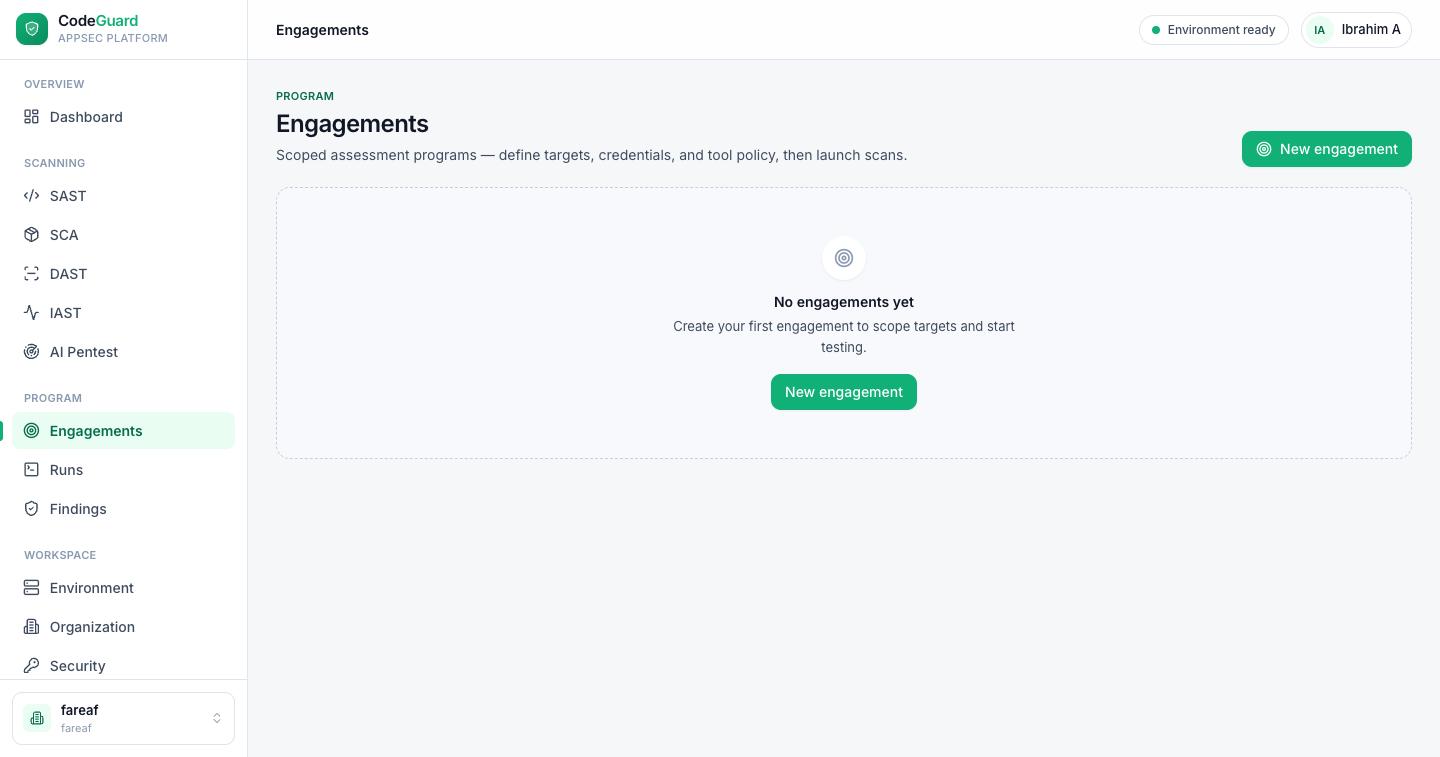
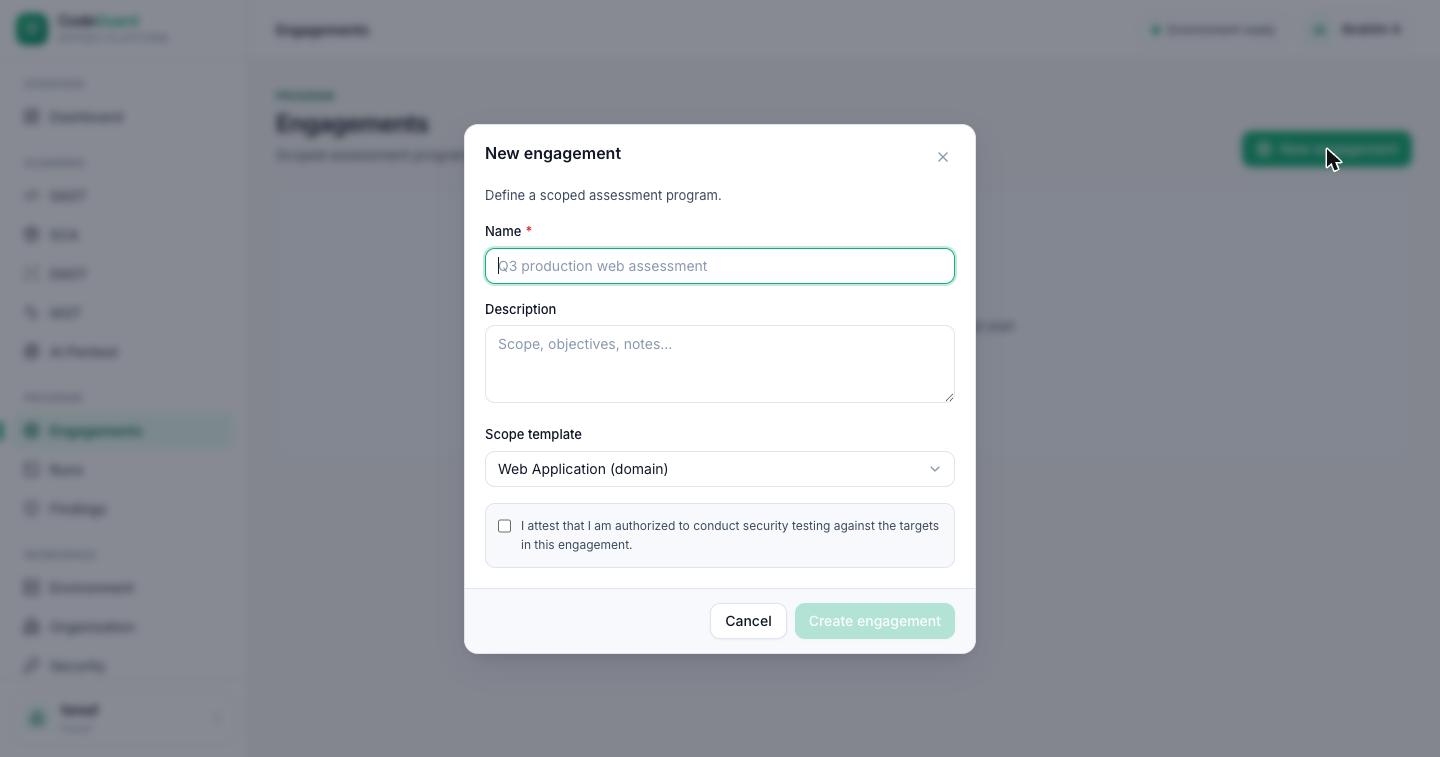
On the Engagements page, click New engagement. Give it a name (e.g.
Q3 production web assessment), an optional description of scope and objectives,
and pick a scope template (such as Web Application (domain)).
Before you can create it, you must tick the authorization attestation: “I attest that I am authorized to conduct security testing against the targets in this engagement.” This consent is recorded when the engagement is created.
Step 2 — Add & verify targets
Inside the engagement, add the targets you want to test. A target can be a domain, a URL, an IP, or a CIDR range. Each target must pass DNS ownership verification before it can be scanned — CodesGuard asks you to publish a DNS record proving you control the domain. Until a target is verified, you can't launch a run against it.
Step 3 — (Optional) capture an authenticated session
Most real risk lives behind a login. CodesGuard can scan authenticated by capturing a real session for the scanner to replay. Using Interactive login, you drive a streamed remote browser and sign in normally — including flows with MFA or SSO. CodesGuard captures the resulting session as an auth profile that DAST and AI Pentest replay so they can reach logged-in pages and APIs.
Targets show a No auth or Authed · N badge so you can see, at a glance, which have authenticated coverage.
Step 4 — Scope & tool policy
An engagement can constrain what scanners are allowed to do — the tool policy and scope settings keep runs inside the boundaries you've defined. This is where you tune aggression and keep testing within agreed limits.
Step 5 — Launch a run
You can launch a run only when the engagement is ready, which means:
- your tenant scanning stack is healthy (see Environment),
- the authorization attestation is recorded, and
- every target you're scanning is DNS-verified.
From there, DAST lets you pick a scan depth (Baseline, Quick active, or Full active), while AI Pentest launches an autonomous run. Both open a live run view.
Runs
The Runs page lists every DAST scan and AI pentest across your workspace, with counters for total, active, completed and failed, and tabs to filter by type.
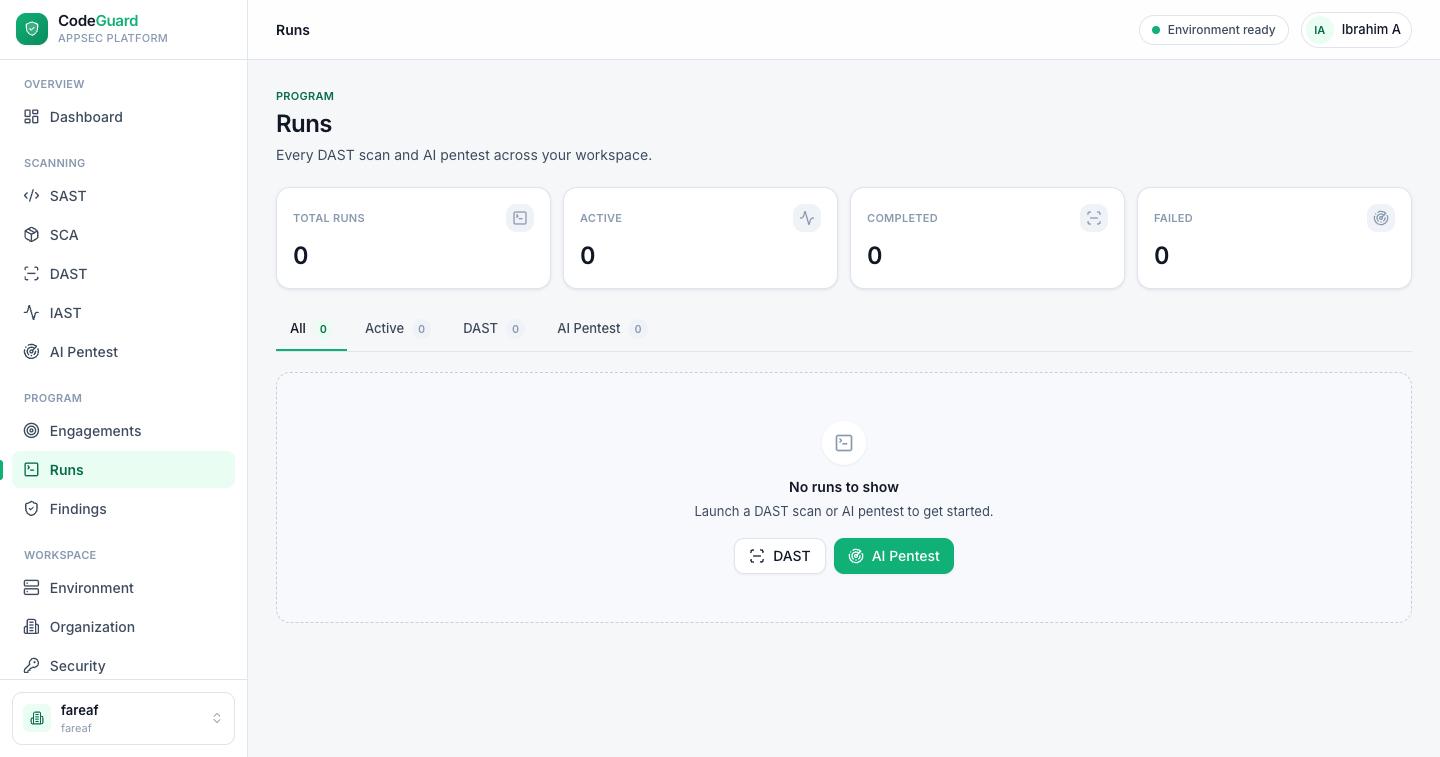
Open a run to watch the live run view: it streams the scanner's or agent swarm's activity — reasoning, tool calls, and findings — as it happens, and preserves the full record when the run completes. Findings from runs flow into the unified Findings page and the dashboard posture.